

[Important] Two-Factor Authentication (2FA) Setup Now Mandatory
Thank you for being a valued member of the SNKRDUNK. To ensure a safer and more secure experience for our users, we are updating our two-factor authentication (2FA) process as follows.


![[Important] Two-Factor Authentication (2FA) Setup Now Mandatory](https://snkrdunk.s3.ap-northeast-1.amazonaws.com/en/magazine/wp-content/uploads/2026/10/15094911/1200-%C3%97-790-px-Article.png)
Two-factor authentication (2FA) is a security feature that verifies your identity by requiring an authentication code (one-time password) in addition to your password when logging in. It ensures that even if someone learns your password, they won’t be able to access your account.
With the recent rise in unauthorized access and other security threats, relying on a password alone is no longer enough to keep accounts fully secure.
These changes are essential to protecting your personal information and assets. We sincerely appreciate your understanding and cooperation.
🔐 Details of the Change
【Before】Two-Factor Authentication: Optional
【After】Two-Factor Authentication: Required
📅 Rollout Schedule
Rolling out in phases starting November
⚠️ Important: Action Required(For users without 2FA)
If the two-factor authentication setup screen appears while using SNKRDUNK, please follow the on-screen instructions to enter your verification code and complete the setup.
For step-by-step setup instructions, please refer to this FAQ page: 📱About Two-Factor Authentication
This setup prompt will only be displayed until your two-factor authentication setup is complete. To ensure a smooth experience, please set it up as soon as possible.
📱 For Users with SMS Verification Enabled(For users without 2FA)
Even if you are already using SMS verification, you will still need to set up two-factor authentication (2FA) separately if it has not yet been configured.
Please check your 2FA status in your account settings under “Account” page, and complete the setup if it is not enabled.
How to Check
-
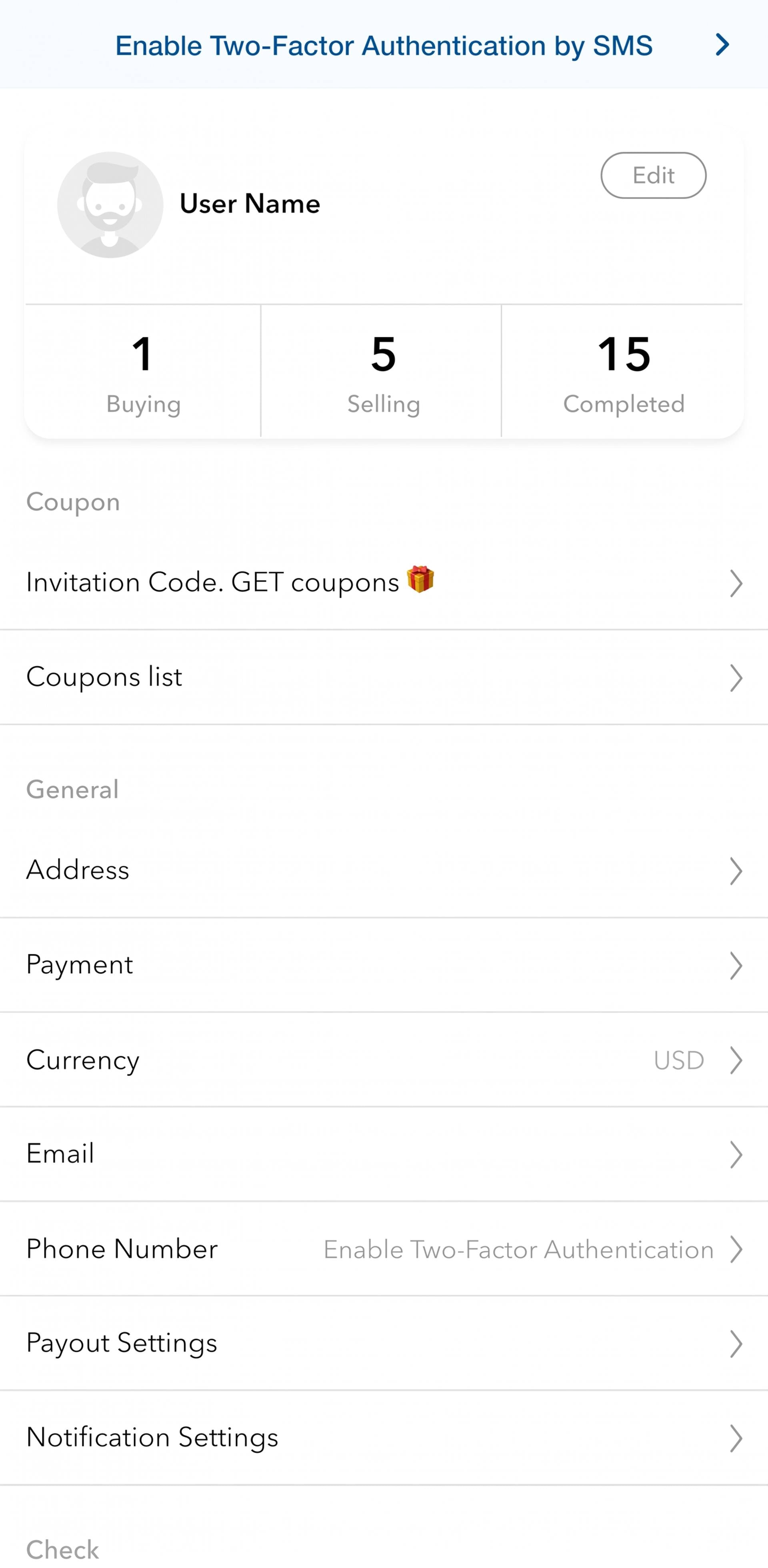
1. Tap on “Account”, then tap on the banner that appears at the top of the screen that says: “Enable two-factor authentication by SMS”;
-
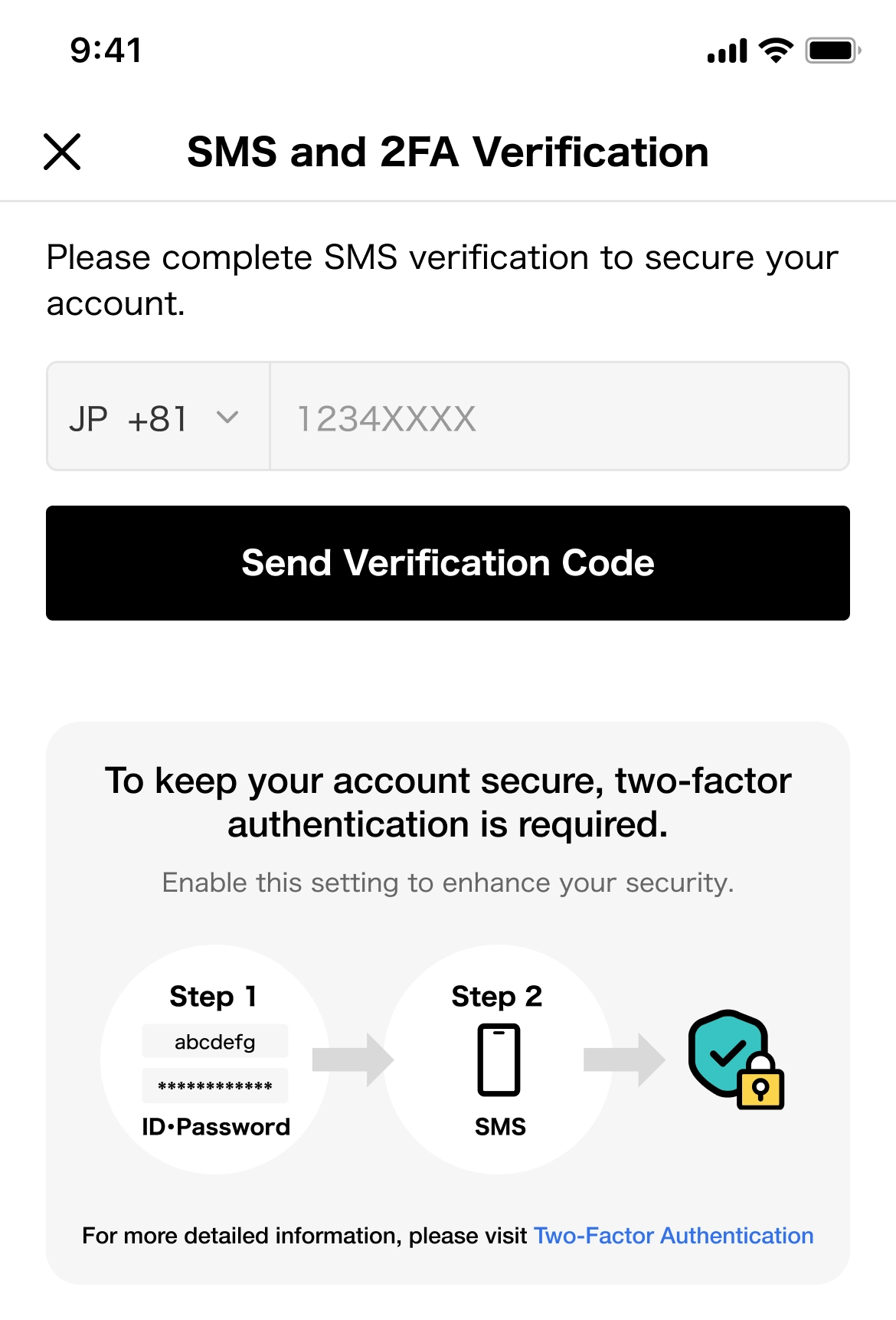
2. You will be redirected to the settings screen: enter your phone number, then tap on “Send Verification Code”;
- 3. On the next screen, enter the 6-digit code you received via SMS, then tap “Verify”.
*If you do not receive the authentication code, tap on “Resend Verification” code (below the “Verify” button)
💬 FAQs & Support
If you have any questions regarding two-factor authentication setup, please refer to our FAQ page: 📱About Two-Factor Authentication
This initiative is essential to keeping your account and transactions secure. We sincerely appreciate your understanding and cooperation. We remain committed to continuously strengthening our security measures so that you can always use SNKRDUNK with confidence.
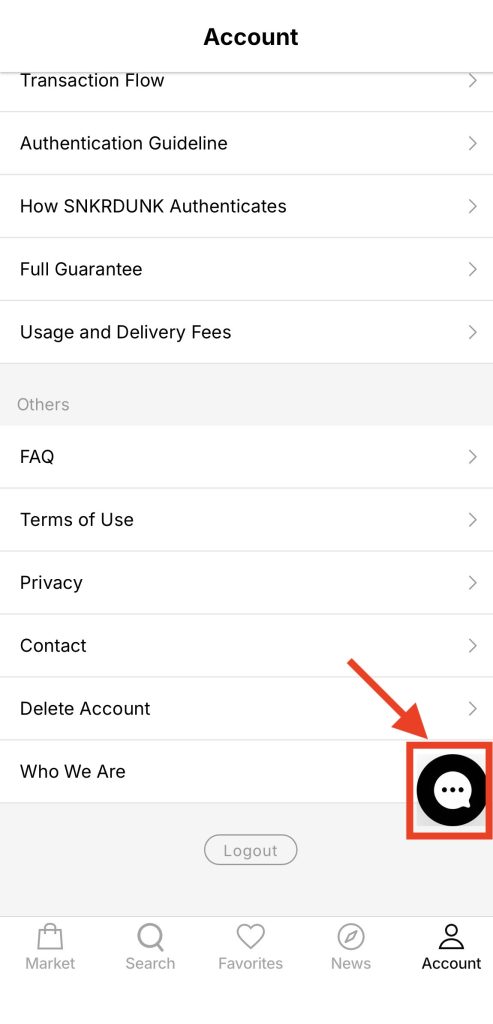
If you have any questions, please feel free to contact us 24/7 via the chat bubble icon in the bottom right of the “Account” page.
Thank you for your continued support of SNKRDUNK.
-
 Aimé Leon Dore x New Balance 990v4 MiUSA “Red Clay” [Release Date/Price/Where To Buy]RELEASES July 25, 2024
 -
 Kith To Launch an Olympics Heritage CollectionRELEASES July 25, 2024
 -
 Travis Scott x Lamborghini Collection 2025 [Release Date/Price/Where To Buy]RELEASES July 25, 2024
 -
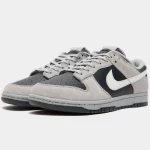 Nike Dunk Low Surfaces in “Light Smoke Grey/Anthracite”RELEASES July 25, 2024
-
Aimé Leon Dore x New Balance 990v4 MiUSA “Red Clay” [Release Date/Price/Where To Buy]RELEASES July 25, 2024
-
Kith To Launch an Olympics Heritage CollectionRELEASES July 25, 2024
-
Travis Scott x Lamborghini Collection 2025 [Release Date/Price/Where To Buy]RELEASES July 25, 2024
-
Nike Dunk Low Surfaces in “Light Smoke Grey/Anthracite”RELEASES July 25, 2024



![[Pokémon TCG] 30th Celebration 9-Set Bundle: Price Predictions & Investment Guide](https://snkrdunk.s3.ap-northeast-1.amazonaws.com/en/magazine/wp-content/uploads/2026/10/15115108/tcg-article-poke-1.png-1.png)
![[Pokémon TCG] Charizard [M6a 137/103] Price Guide, Market Trends & Price History (Pokémon TCG: 30th Celebration)](https://snkrdunk.s3.ap-northeast-1.amazonaws.com/en/magazine/wp-content/uploads/2026/10/09145912/article-tcgBox-pokemon-3.png)
![[Pokémon TCG] What is the 30th CELEBRATION Card Set? Buyback, Market Price Predictions](https://snkrdunk.s3.ap-northeast-1.amazonaws.com/en/magazine/wp-content/uploads/2026/08/18125022/2-1.png)
![[OPCG] Shirahoshi SR-SP (Manga Alt Art) Price Guide, Market Trends & Price History (Heroines Edition Vol.2)](https://snkrdunk.s3.ap-northeast-1.amazonaws.com/en/magazine/wp-content/uploads/2026/10/08112019/1.png)
![[OPCG] Nico Robin L-SP (Manga Alt Art) Price Guide, Market Trends & Price History (Heroines Edition Vol.2)](https://snkrdunk.s3.ap-northeast-1.amazonaws.com/en/magazine/wp-content/uploads/2026/10/08105938/article-tcgBox-pokemon-2.png)


